Zoom and Teams Virtual Backgrounds: Sizes, Contrast and What Actually Shows Up on Camera
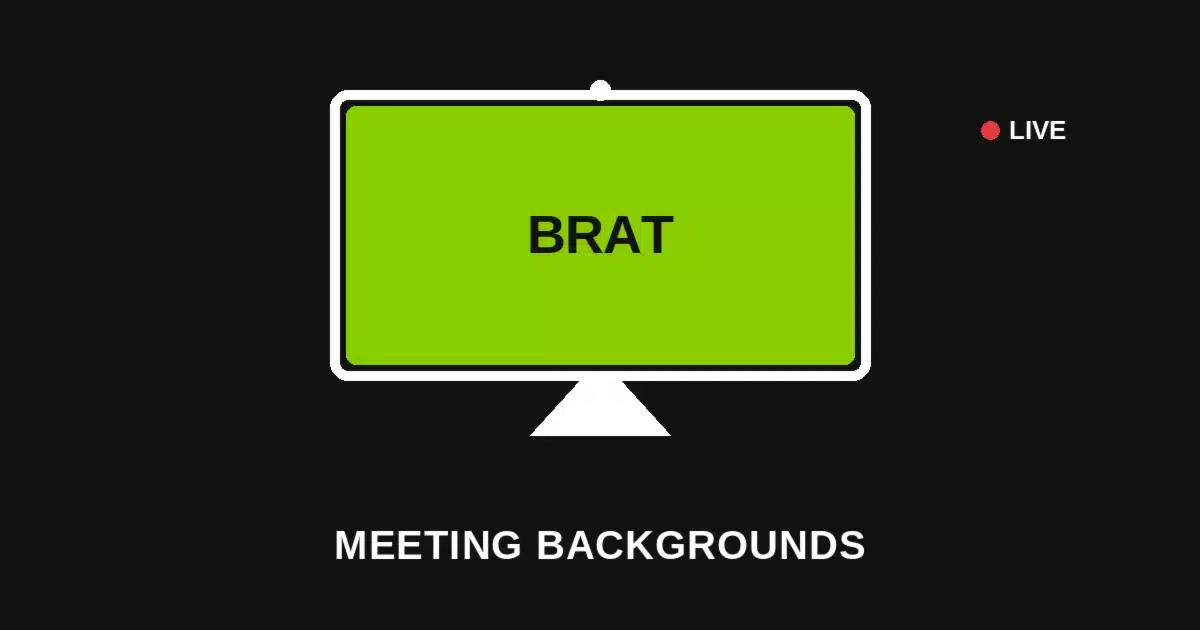
A virtual background needs a correct aspect ratio and a design that does not interfere with your face. This guide covers sizes, placement and tests, with a simple text design from the free Brat Text Generator.
> Apps update their requirements. Check the video app’s current help page for supported sizes.
Sizes
Video calls use 16:9. A common recommendation is 1920 x 1080 px; some apps recommend a minimum around 1280 x 720. Use the largest your app accepts for a sharp result.
| App | Typical image types |
|---|---|
| — | — |
| Zoom | JPG, PNG or GIF |
| Microsoft Teams | PNG, JPG or BMP |
Mirroring
Most apps flip your own view like a mirror, so text on the background looks reversed to you but correct to others. Check by asking a colleague or recording a test.
Placement
Your head and shoulders cover the center, so put text at the left or right edge where it is visible beside you. Keep it large.
Contrast
A flat color works better than a busy photo because the software cuts you out more cleanly. Pick a color that differs from your clothing and skin. The colors guide lists tested pairs.
Steps
- Open the generator and set the custom size to 1920 x 1080.
- Type a short phrase, such as your name or team.
- Export PNG.
- Upload in the app’s background settings.
- Test in a private call.
Professionalism
For work calls, keep text simple. A name or company is fine; jokes can distract. Check any company branding rules first.
Lighting
Good lighting on your face reduces cut-out errors more than any background choice.
Testing before an important call
Open your camera settings and view the background with your face on. Check lighting on your face, because a bright background can wash out dim lighting. Do a test call with a friend to confirm edges look natural.
Professional alternatives
A blurred background or a plain wall may be more suitable for formal meetings.
Lighting and framing
A virtual background works best with even front lighting and a plain, uncluttered area behind you. Avoid sitting in front of a bright window, which can make the background effect flicker. Wear colours that contrast with the background.
Bandwidth
Virtual backgrounds use extra processing. If your connection or computer struggles, switch to a blur or turn the effect off.
A worked example: a weekly team call
A team lead wants a background for Friday calls. She sets the generator to 1920 by 1080, types the team name in black on a pale background and puts the text in the left third. Because the app mirrors her own view, she records a short test call and checks that the text reads correctly to others. She also checks the lighting: with a lamp in front of her face, the cut-out around her hair is cleaner than with the room light alone.
Troubleshooting
| Symptom | Fix |
|---|---|
| Text appears backwards to me | That is the self-view mirror; others see it correctly |
| Edges around my hair flicker | Add front lighting and avoid a background that matches your clothing |
| Background will not upload | Check format and size in the app’s requirements |
| Background looks pixelated | Export at 1920 x 1080 |
Choosing content
For work, keep it simple: a team name, project name or a plain color. Avoid jokes that could be misread, and check whether your company has branding rules for backgrounds.
Privacy benefit
A plain background hides your room. It is not a security tool, so do not rely on it to hide sensitive information.
Accessibility on calls
High-contrast text helps people with low vision. Avoid flashing or busy backgrounds, since they distract people who use captions.
Setting up the background
Export at 1920 by 1080 pixels, which matches common video background resolution. In Zoom, open Settings, Backgrounds and Effects, and add your image. In Microsoft Teams, choose Effects during a meeting and upload a custom image. Menus change, so follow the app’s current instructions.
Making it work on camera
Your body covers the middle, so put any text toward the upper corners. High-contrast text can look busy behind a person, so use a calm design for work calls and keep the brightest colours for casual ones.
When to avoid a virtual background
If your workplace requires a plain or real background, follow their policy.
Rules for professional use
Some workplaces and schools set rules about virtual backgrounds, so check before you use a custom one. If a plain or branded background is required, follow that. Avoid backgrounds with text that competes with your face or with shared screens, and avoid anything that might distract other attendees.
Technical tips
If the edge around your head flickers, improve front lighting, wear a colour different from the background and sit a little closer to the camera. If your computer slows, reduce the video resolution or turn the effect off.
Choosing images that suit the camera
Video compression softens fine detail, so choose images with simple shapes and clear colour. Avoid thin lines, which flicker, and avoid patterns that look busy behind a moving person. A plain green with a single word in a corner is both attractive and stable on camera. Test it in a private meeting first and ask a colleague how it looks on their side.
Frequently asked questions
Can I use a green screen?
It improves the cut-out. A plain wall also works.
Why do my edges flicker?
Poor lighting or a background similar to your clothing.
Can I use a video background?
Some apps support video backgrounds; check their help pages.
Does it need a green screen?
No, but a plain wall and good lighting give better results.
Why does the text appear flipped?
Some apps mirror your own preview, but others see it correctly; check with a colleague.
What file type works best for a virtual background?
PNG or JPEG both work in most apps.
Brat Generator is an independent tool and is not affiliated with, endorsed by, or sponsored by Charli XCX, her record label, or any related brand. Any album or trademark names are mentioned only to describe a visual style.