Brat-Style Twitch Overlay, Panel & Emote Sizes (That Won’t Get Rejected)
Quick answer: Twitch panels are 320px wide (height is flexible, but 320x100px is a common starting point). Emotes need 28x28px, 56x56px, and 112x112px versions (or one 112x112px to 4096x4096px source Twitch auto-resizes), each under 1MB. Profile banners are 1200x480px minimum, with height fixed at 480px. Stream overlay elements — alert boxes, webcam frames, offline screens — aren’t uploaded to Twitch at all; they’re built in streaming software like OBS or Streamlabs, so their sizes depend on your canvas, typically 1920x1080px.
Twitch’s upload requirements are stricter about file size and format than about one single pixel dimension, which is exactly why so many brat-style panel and emote uploads get rejected or come out blurry.
Twitch Panel Sizes
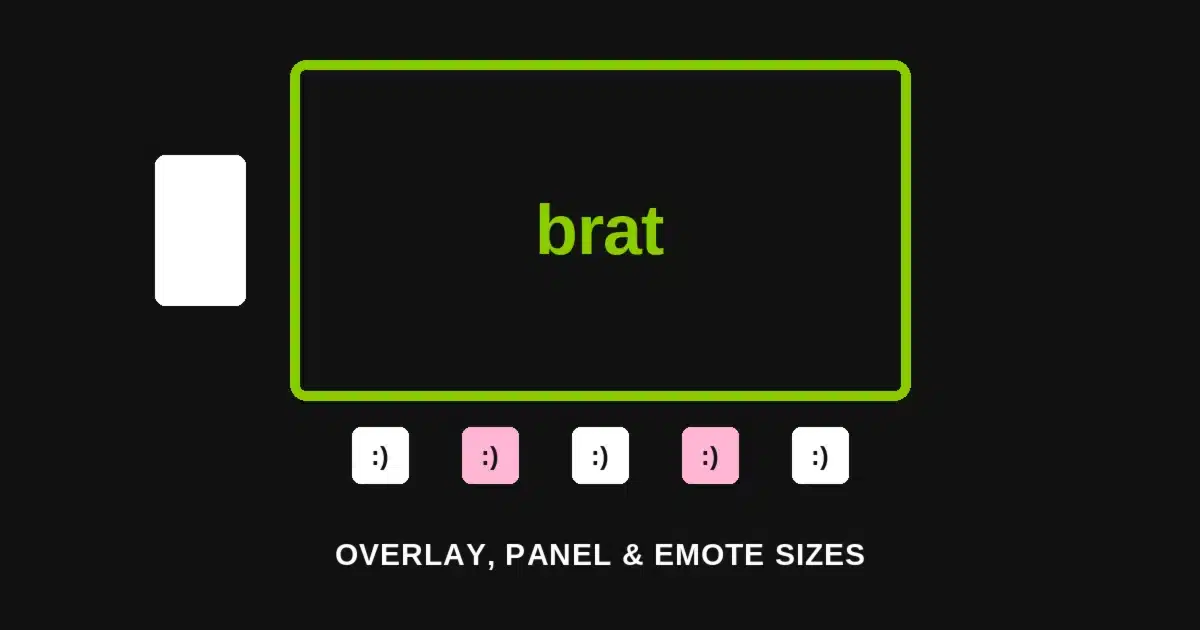
Panels sit below the video player on a channel page, and their width is fixed even though their height isn’t: every panel image needs to be exactly 320px wide, with height a flexible but commonly-cited 100px for a single info panel.
Because width is fixed and height varies by convention, exporting at 320px wide with a proportional height close to 100px keeps a brat-style panel sharp and consistent next to a channel’s other panels.
Emote Sizes
Twitch emotes need three sizes if you’re uploading manually: 28x28px, 56x56px, and 112x112px. Uploading a single 112x112px to 4096x4096px image lets Twitch auto-generate the smaller sizes instead.
Every emote file, at any size, must stay under 1MB. Static emotes export as PNG; animated emotes export as GIF, capped at 60 frames.
| Emote Size | Use |
|---|---|
| 28x28px | Smallest display size, chat at default zoom |
| 56x56px | Mid-size display |
| 112x112px | Largest display size |
| 112x112px–4096x4096px | Single source upload (auto-resized) |
A flat-color, bold-text brat emote reads clearly even at 28px, which is exactly the size most viewers actually see it at in a fast-moving chat.
Profile Banner Size
The profile banner sits across the top of a channel page. Twitch’s minimum is 1200x480px, and the height of 480px is fixed — only the width can scale up from there.
Stream Overlay Elements (Built in Software, Not Uploaded)
Overlay elements aren’t uploaded to Twitch directly — they’re built as sources inside streaming software such as OBS Studio or Streamlabs, so their sizing follows your stream’s canvas rather than a Twitch upload spec.
Alert box: typically built at the full stream canvas size, commonly 1920x1080px, as a transparent PNG, animated GIF, or WEBM with alpha channel so only the alert graphic shows over gameplay.
Webcam frame: usually sized to match the webcam feed itself, commonly 640x360px to 1280x720px at a 16:9 ratio, as a transparent PNG frame placed over the camera source.
Offline screen: a static image shown when the stream isn’t live, typically exported at the full 1920x1080px canvas size as a PNG or JPEG.
Feature-by-Feature Comparison
| Element | Size | Uploaded to Twitch? |
|---|---|---|
| Panel | 320px wide, ~100px tall (flexible) | Yes |
| Emote (manual) | 28×28, 56×56, 112x112px | Yes |
| Emote (auto-resize source) | 112x112px–4096x4096px | Yes |
| Profile banner | 1200x480px minimum, 480px height fixed | Yes |
| Alert box | ~1920x1080px canvas, transparent | No — built in streaming software |
| Webcam frame | 640×360–1280x720px, 16:9 | No — built in streaming software |
| Offline screen | 1920x1080px | No — built in streaming software |
Building Each Size With a Free Generator
For panels: set a canvas of 320px wide by your chosen height, generate the flat brat-style text graphic at that exact size, and export directly — no cropping needed afterward.
For emotes: start from the largest size you plan to use (up to 4096x4096px if letting Twitch auto-resize), keep the design bold and simple since it will shrink down to 28px, and export as PNG.
For banners and offline screens: generate at the full target size (1200x480px or 1920x1080px) so Twitch or OBS doesn’t have to stretch a smaller file and introduce blur.
Common Mistakes to Avoid
Uploading an emote that only reads clearly at full size. Most viewers see emotes at 28px in chat — if the design disappears at that size, it won’t work no matter how good it looks zoomed in.
Ignoring the panel’s fixed width. Panels display at 320px wide regardless of what width you upload, so exporting at a different width just means Twitch scales it, often introducing blur.
Treating overlay elements like Twitch uploads. Alert boxes, webcam frames, and offline screens go into streaming software, not Twitch’s own upload fields — there’s no single official pixel spec for them, only the convention of matching your canvas.
Skipping the file-size caps. Emotes over 1MB get rejected outright; checking the file size before uploading saves a failed-upload round trip.
Who This Guide Is For
Streamers setting up or refreshing a brat-style channel — someone building their first panel set, designing an emote pack their chat will actually use at a glance, or swapping in flat-color overlay elements that match a brat aesthetic without hiring a designer for every piece.
A Quick Reference Before You Build
Panels: 320px wide. Emotes: 28/56/112px manual, or one 112–4096px source. Banner: 1200x480px minimum, 480px height fixed. Overlay elements: match your streaming software’s canvas, typically 1920x1080px — and none of those three get uploaded to Twitch directly.
Frequently Asked Questions
What size should a Twitch panel image be? 320px wide is fixed. Height is flexible, but 100px is a common starting point for a single info panel.
What are the required Twitch emote sizes? 28x28px, 56x56px, and 112x112px if uploading manually, or a single source between 112x112px and 4096x4096px that Twitch auto-resizes.
Is there a file size limit for Twitch emotes? Yes, every emote file must be under 1MB regardless of its pixel dimensions.
What’s the minimum size for a Twitch profile banner? 1200x480px minimum, with the 480px height fixed — only width scales up from there.
Do I upload my stream overlay to Twitch? No. Alert boxes, webcam frames, and offline screens are built as sources inside streaming software like OBS or Streamlabs, not uploaded through Twitch’s own panel or emote fields.
What format should animated emotes be? GIF, with a maximum of 60 frames.
What canvas size should I use for an alert box? Most streamers match their full stream canvas, commonly 1920x1080px, exported as a transparent PNG, animated GIF, or WEBM with alpha.
Why does my emote look blurry in chat even though the file looked sharp? Most chat views display emotes at 28px — a design that relies on fine detail disappears at that size even when the source file is sharp.
Need a flat-color brat graphic sized exactly for a panel, emote, or offline screen? Head to the Brat Text Generator and export it free, full resolution, no sign-up required.
Related reading: Brat-Style Twitch Banner Guide, Brat Discord Banner Guide, Brat Discord Server Icon, Emoji & Sticker Sizes