How to Make a Brat-Style Discord Server Banner & Icon
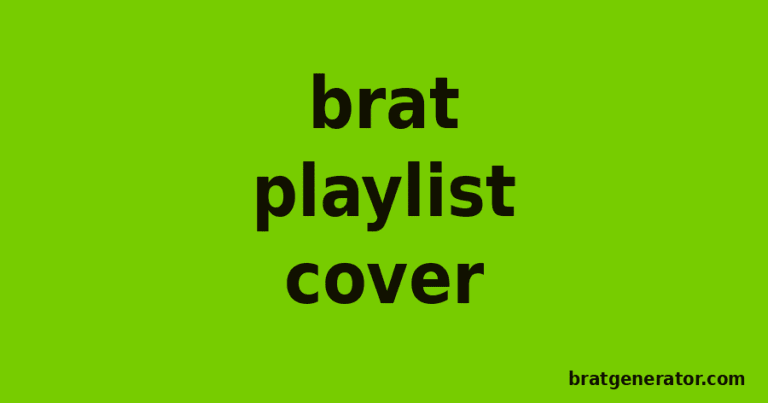
A Brat-style Discord server banner or icon uses the same flat-color, bold-lowercase-type look as Charli XCX’s Brat album cover, sized to Discord’s exact 960 x 540px server banner and 512 x 512px server icon — and you can build both for free with the Brat Text Generator in a couple of minutes, no design software required. Here’s exactly how to size each element, how the server icon’s small render size changes what text actually works, and the mistakes that make Discord graphics look blurry or off-center.
Discord’s Exact Banner and Icon Sizes
Discord uses several different image slots across a server, each with its own recommended dimensions:
| Element | Recommended Size | Notes |
|---|---|---|
| Server banner | 960 x 540px minimum (1920 x 1080px recommended) | 16:9 ratio; anything below 1920 x 1080 looks soft on large screens |
| Server icon | 512 x 512px | Displayed as a circle; renders at roughly 48px in the sidebar |
| User profile banner | 600 x 240px minimum | Sits behind your avatar on your personal profile card |
Because the server icon renders at only about 48 pixels wide in the sidebar, long words or multi-word phrases become unreadable at that size — a single short word or initials works far better than a full phrase.
How to Build a Brat-Style Discord Server Banner
1. Open the Brat Text Generator
Go to the Brat Text Generator — it runs the same in any browser, and nothing you create is uploaded anywhere until you export it yourself.
2. Set a custom size close to Discord’s 16:9 ratio
Discord’s banner doesn’t match any of the built-in social presets exactly, so pick the closest wide preset and adjust, or use a 1920 x 1080 export and let Discord’s crop handle the rest — the platform is more forgiving of slight ratio mismatches on banners than it is on icons.
3. Choose your server’s theme phrase or name
A short server name, tagline, or single evocative word tends to work better than a long phrase at banner width — keep it to a handful of characters so the bold type stays large and readable.
4. Export and upload
Download the PNG, then in Discord go to Server Settings > Overview, and upload it under Server Banner. Note that animated and custom banners are a Server Boost feature — your server needs Boost Level 2 or higher to unlock a static banner, and Level 3 for animated banners.
Building a Matching Server Icon
Since Discord displays server icons as circles rendered at a very small size, the approach that works for a banner won’t translate directly:
- Use a single letter or short word. Full phrases become an illegible blur at 48px — a bold single letter or two-character mark reads clearly even at that size.
- Keep it centered and away from the edges. The circular crop clips the corners of a square export, so anything near the edge risks getting cut off.
- Use the Album Cover Generator for a proper square layout. The Brat Album Cover Generator is built for square exports and gives more control over centered text, which holds up better once Discord applies its circular mask.
Common Mistakes With Discord Server Graphics
- Uploading a banner below 1920 x 1080 for a large server. Discord accepts smaller files, but anything under the recommended resolution looks noticeably soft on wide monitors.
- Using a full phrase for the server icon. At a 48px render size, only a single letter or very short mark stays legible.
- Forgetting the circular crop on the icon. A square export with text near the corners gets clipped once Discord applies its round mask.
- Assuming banners are available at every boost level. Static server banners require Boost Level 2; without enough boosts, the option won’t appear in settings at all.
Discord vs. Other Platform Graphics
If you’re building a matching identity across Discord and other platforms your community also uses, keep the different ratios in mind:
| Platform | Size | Notes |
|---|---|---|
| Discord server banner | 1920 x 1080px (16:9) | Much wider ratio than most social headers |
| Discord server icon | 512 x 512px (square, cropped to circle) | Renders tiny — keep text minimal |
| Twitch profile banner | 1200 x 480px | Closer to 2.5:1, narrower than Discord’s banner |
| X / Twitter header | 1500 x 500px | 3:1 ratio |
A file exported for X or Twitch will look stretched if dropped directly into Discord’s wider 16:9 banner slot — export a version at each platform’s own ratio rather than reusing a single file across all of them.
Why the Aesthetic Works for Discord Communities
Discord servers are visually dense — channel lists, member sidebars, embeds, and reaction emoji all compete for attention around the banner and icon. A flat, high-contrast graphic cuts through that density the same way it works as a stream overlay or social header: there’s no fine detail competing with everything else on the page. That makes the aesthetic a practical fit for a server identity, not just an aesthetic choice, even for communities that wouldn’t otherwise brand themselves around the Brat album specifically.
Server Banner vs. User Profile Banner: Don’t Mix These Up
Discord actually has two different banners that often get confused: the server banner (the wide image behind the server name at the top of the channel list, requiring Boost Level 2) and the personal profile banner (the image behind your own avatar on your user card, visible to anyone who clicks your name). They use different dimensions — the server banner is a wide 16:9 rectangle, while the personal profile banner is closer to 600 x 240px and doesn’t require any boosts at all, since it’s tied to your account rather than the server. If your goal is a Brat-style look on your own profile rather than the server itself, you can set that up immediately through User Settings > Profiles without needing anyone to boost anything.
Building a Full Server Identity Beyond the Banner
A banner and icon are the most visible pieces, but a cohesive Brat-style server usually extends further: role colors that echo the palette (acid green, black, hot pink, or white depending on the server’s tone), a welcome screen graphic in the same font treatment, and channel category headers using short, consistent phrasing. Because every export from the generator reuses the exact same color values, matching a role color to your banner is a matter of copying the hex code rather than eyeballing a similar shade. Emoji and sticker packs are a smaller but noticeable detail too — a handful of custom emoji using the same bold lowercase style tie the whole identity together in a way a mismatched default emoji set doesn’t.
Animated Banners and Boost Requirements in Detail
Discord’s boost system gates several visual features behind server activity, which trips people up when a banner option simply doesn’t appear in settings. Level 1 unlocks custom invite backgrounds and improved audio quality but not a banner. Level 2 is the threshold for a static server banner, along with a higher-quality server icon animation slot and an increased emoji limit. Level 3 unlocks animated banners specifically, along with a vanity URL and additional perks. If your server banner option is missing, checking your current boost level under Server Settings > Server Boost Status is the first thing to verify before troubleshooting the image itself.
Frequently Asked Questions
What size should a Discord server banner be?
1920 x 1080 pixels is the recommended Discord server banner size at a 16:9 ratio, though Discord accepts images as small as 960 x 540.
What size should a Discord server icon be?
512 x 512 pixels, displayed as a circle. Since it renders at roughly 48px in the sidebar, keep text to a single letter or very short mark.
Do I need Server Boosts to add a banner?
Yes — a static server banner requires Boost Level 2, and animated banners require Level 3. Without enough boosts, the banner option won’t be available in Server Settings.
Will my icon text get cropped?
Yes, if it sits near the corners — Discord displays server icons as circles, so anything close to the edge of a square image gets clipped.
Do I need design software to make these?
No. The Brat Text Generator runs entirely in your browser, with no install, no account, and no watermark.
Can I use the same file for my server banner and icon?
Not directly — the banner is a wide rectangle and the icon is a small circle-cropped square, so each needs its own export sized and composed for that specific slot.
What file format works best for Discord uploads?
PNG is the better default for banners and icons with flat colors and sharp type, since it holds up better than JPEG around hard edges; GIF is only needed if you’re building an animated banner at Boost Level 3.
Can I change my server icon and banner later without losing the boost?
Yes — swapping either image is instant and doesn’t affect your server’s boost level or any other perks, so it’s easy to test a few color or phrase variations before settling on a final version.
Once your server banner and icon are set, the same tool covers announcement graphics and channel art too — the Meme Generator uses the identical font and color presets, so your whole server can share one consistent look.