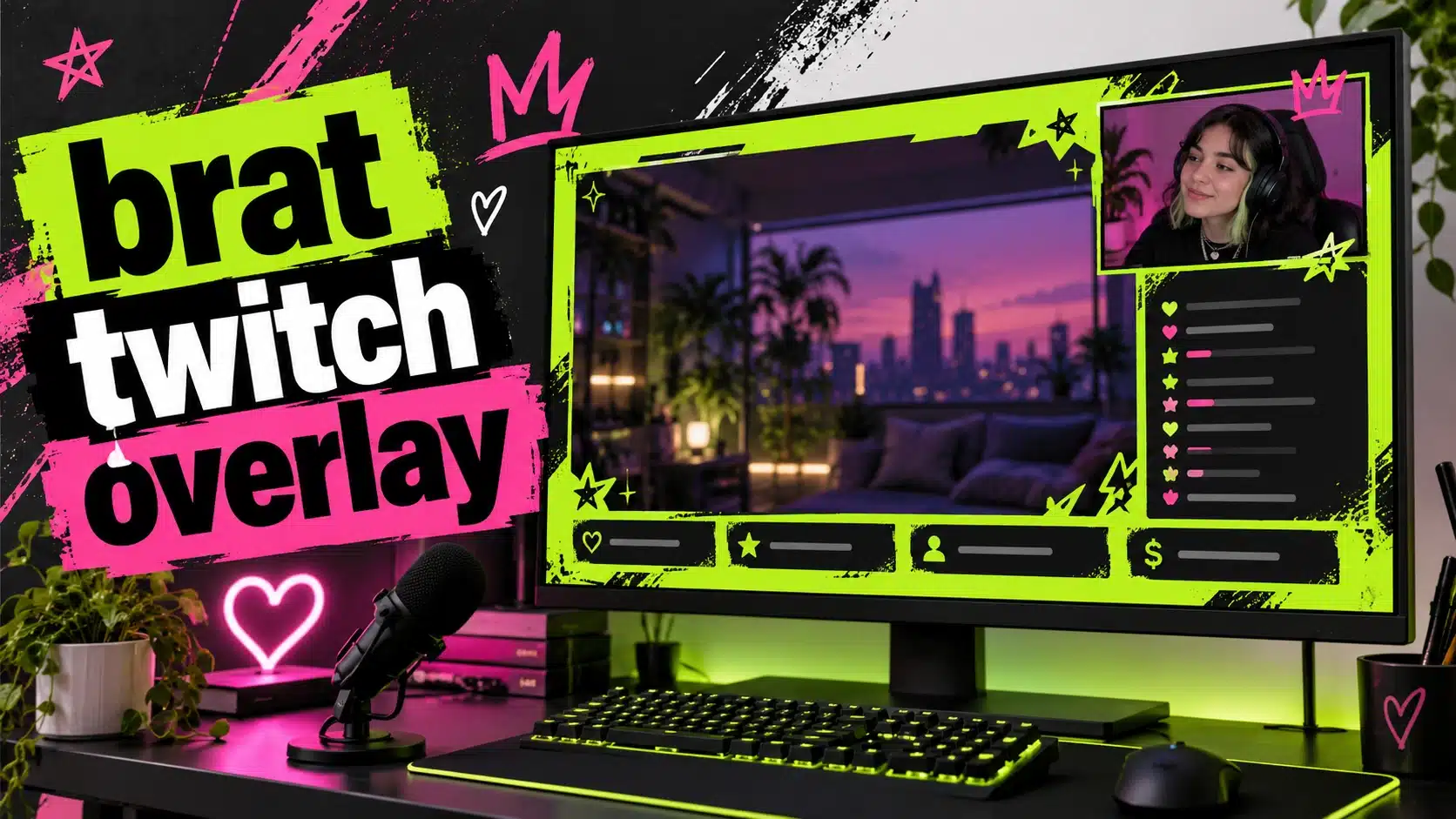
Brat Twitch Overlay: How to Design a Bold Stream Layout That Reads Clearly
A Brat Twitch overlay gives a livestream a recognizable visual identity without forcing the screen to become busy. The formula is straightforward: one saturated background color, bold lowercase type, sharp contrast, and a few useful frames for the webcam, alerts, chat, or recent followers. The challenge is knowing what to include and what to leave out. A stream overlay should support the live content rather than cover it.
This guide explains how to plan a Brat-style Twitch overlay, which canvas sizes are practical, how to keep gameplay visible, and how to create matching graphics with the Brat Generator. It is written for streamers, moderators, fan communities, and creators who want a strong look without opening a complex design program.
What is a Brat Twitch overlay?
A Brat Twitch overlay is a streaming layout inspired by the bold, deliberately simple visual language associated with Brat-inspired graphics. It usually combines a flat lime-green, black, white, pink, or custom-color field with bold typography and a few geometric accents. The design can appear as a full-screen starting scene, a gameplay frame, a webcam border, a chat panel, or a collection of matching stream screens.
It is important to treat the style as an independent fan aesthetic rather than official artist branding. Do not imply an endorsement by Charli XCX, a record label, Twitch, or another rights holder. Use original wording, original layout decisions, and assets you are allowed to use.
Start with the stream purpose
Before choosing the color, decide what the overlay must accomplish. A gaming stream may need a large gameplay area, a compact webcam frame, and small alert labels. A just-chatting stream may need a lower-third name plate, social handles, and a larger camera frame. A music or art stream may benefit from a clean border and a small “now creating” panel.
Write a short list of required elements. Separate them into essential, useful, and decorative. Essential elements are things viewers need to understand the stream: the camera frame, gameplay window, or stream title. Useful elements include latest follower, donation, social handle, or chat frame. Decorative elements include stars, scribbles, icons, and extra color blocks. If the screen feels crowded, remove decoration before reducing the size of the gameplay area.
The practical canvas for Twitch graphics
Many streaming layouts are designed around a 16:9 canvas because common broadcast scenes use widescreen video. A 1920 × 1080 canvas gives you room to position the game, camera, labels, and alerts. A 1280 × 720 working file can also be useful for a lightweight overlay, especially when you are testing a concept.
Use separate dimensions for supporting assets. A webcam frame can be a transparent PNG with a square or rectangular opening. A starting-soon screen can use the full 1920 × 1080 composition. A profile avatar or panel icon should be treated as a square design. The important rule is consistency: keep the same palette, type treatment, and spacing across every scene.
How to design a Brat stream overlay
1. Choose a two-color system
Start with one background and one text color. Classic Brat Green is often represented by #8ACE00, but black, white, hot pink, blue, yellow, purple, cyan, and gold can create different moods. Black on green is immediately legible. White on black is strong for a darker stream setup. Pink and green can make a celebratory scene, while white and black can make an announcement screen feel cleaner.
Do not use all nine colors at once. Add one accent color only after the base combination works. Repeating the same pair across your starting screen, camera border, panels, and alerts will make the stream feel like a system rather than a collection of unrelated graphics.
2. Protect the content area
Your overlay should never compete with the game or live camera. Place borders around the content instead of placing large objects over it. If a corner of the game already contains important information, leave that corner open. Viewers should be able to see health bars, subtitles, maps, chat, or artwork without the overlay hiding them.
Use negative space intentionally. A flat-color margin can create the Brat look without requiring a heavy frame on every edge. A thin color block, small label, or short word is often enough. The more movement your stream contains, the calmer the overlay should be.
3. Keep labels short
Stream overlays are viewed at small sizes, so long labels become visual noise. Use “live,” “chat,” “new sub,” “last follow,” or a short username instead of full sentences. For an alert, let the streaming software display the dynamic message while the graphic provides the consistent frame.
Lowercase type fits the aesthetic, but readability wins. Use a font weight that stays clear on a monitor and mobile replay. Test your design against a screenshot of your actual game. A green border that looks attractive on white can disappear over a bright game scene.
4. Build a webcam frame
A webcam frame is one of the easiest places to apply the style. Use a flat field around the camera opening, add one short label, and keep the border thick enough to remain visible after compression. If you use a green screen, avoid a background color that competes with your keying setup. If you do not use a green screen, a solid frame can separate the camera from the gameplay without requiring a busy backdrop.
5. Design matching scenes
Create a small set of scenes: starting soon, live gameplay, intermission, be right back, and stream ending. Keep the headline position consistent so viewers always know where to look. Change only the words and the supporting icon or illustration. This approach saves time and makes the stream easier to recognize when a viewer returns.
How to use the Brat Generator in your workflow
The Brat Generator is useful for quickly creating the text-based parts of a stream identity. Type a short label, choose a background and text color, select a wide platform size or custom canvas, and preview the result. You can use outputs for scene headers, webcam labels, chat panels, or a starting-soon headline.
For a wide layout, create a 16:9 base. For a webcam badge, use a square or custom rectangle. If you need to assemble several pieces, export individual text graphics and arrange them in your streaming software. Link to the site’s Brat text generator when readers want longer phrases, and link to the Brat album cover generator when they want a square playlist or stream announcement graphic.
Overlay ideas by stream type
For gaming, use a thin green frame around the gameplay and a compact black-and-pink webcam card. For just chatting, use a larger camera area with a short name plate and an uncluttered chat area. For art streams, leave most of the canvas open and use the style on the title card, timer, and alerts. For community streams, create a simple “welcome” scene with a large phrase and a second scene containing rules or schedule information.
If your stream has a strong recurring phrase, turn it into a signature. The phrase can appear on the starting screen, profile panels, and social graphics. Avoid using a phrase that suggests official affiliation or repeats protected lyrics you do not own.
Accessibility and viewer comfort
High contrast is helpful, but flashing or rapidly changing elements can become uncomfortable. Keep decorative animations subtle. Do not make every alert bounce, pulse, and rotate. Use readable type, sufficient spacing, and a design that still works when a viewer reduces brightness or watches on a small device.
Remember that viewers may use screen readers or rely on the stream title and spoken context rather than the image. Put important information in the stream title and panels as text, not only inside a graphic. If you publish a tutorial featuring your overlay, use descriptive image alt text such as “lime-green Brat-style Twitch overlay with webcam frame and chat panel.”
Common mistakes
The first mistake is covering too much of the content. The second is using tiny labels that cannot be read on a phone. The third is treating every scene like a poster and adding the same large word everywhere. A good overlay creates hierarchy: gameplay first, camera and alerts second, decoration third.
Another mistake is failing to test the overlay in motion. A graphic that looks balanced in a still image may cover a notification, collide with subtitles, or make the camera feel cramped. Run a private test recording and watch it at normal speed before using it on a public stream.
Final checklist
Use a 16:9 base, keep the main content visible, choose two core colors, use short labels, protect corners with important game information, create matching scenes, test the design on a real recording, and export the correct transparent or full-screen assets. Start with the free Brat Generator for fast text graphics, then assemble the complete layout in your streaming software.
FAQ
What size should a Brat Twitch overlay be?
A 1920 × 1080 canvas is a practical starting point for a widescreen stream layout. Use smaller working sizes when performance or file size matters.
Can I make a transparent webcam frame?
Yes. Build the visual border separately and export it with transparency from a tool that supports transparent output.
Should I put text over gameplay?
Only if it does not hide important game information. A border or margin is usually safer than a large graphic placed across the action.
Is the Brat Generator officially affiliated with Twitch or Charli XCX?
No. It is an independent fan-oriented creative tool and should not be presented as an official partnership.
Frequently asked questions
What size is a Twitch overlay?
Overlays are usually built at 1920 by 1080 pixels to match a full HD stream canvas.
Where do I place text on an overlay?
Keep it away from your webcam, chat and alert areas so it does not overlap other elements.
Can I use the PNG with transparency?
Yes, if your overlay design needs it, check that your streaming software supports PNG with transparency.
Brat Generator is an independent tool and is not affiliated with, endorsed by, or sponsored by Charli XCX, her record label, or any related brand. Any album or trademark names are mentioned only to describe a visual style.