How to Make an Animated Brat GIF from Text Images
To make an animated Brat GIF, create several matching text images, arrange them as frames in a GIF editor, and set how long each frame stays visible. A short sequence with a steady background and readable timing usually works better than rapid flashing or a crowded paragraph.
Start by creating your frames in our brat generator. It currently exports static PNG and JPEG images, so assembling the animation requires a separate editor. This guide uses a simple three-card example and explains how to keep the finished loop clear when shared at a small size.
Plan a message that works in a loop
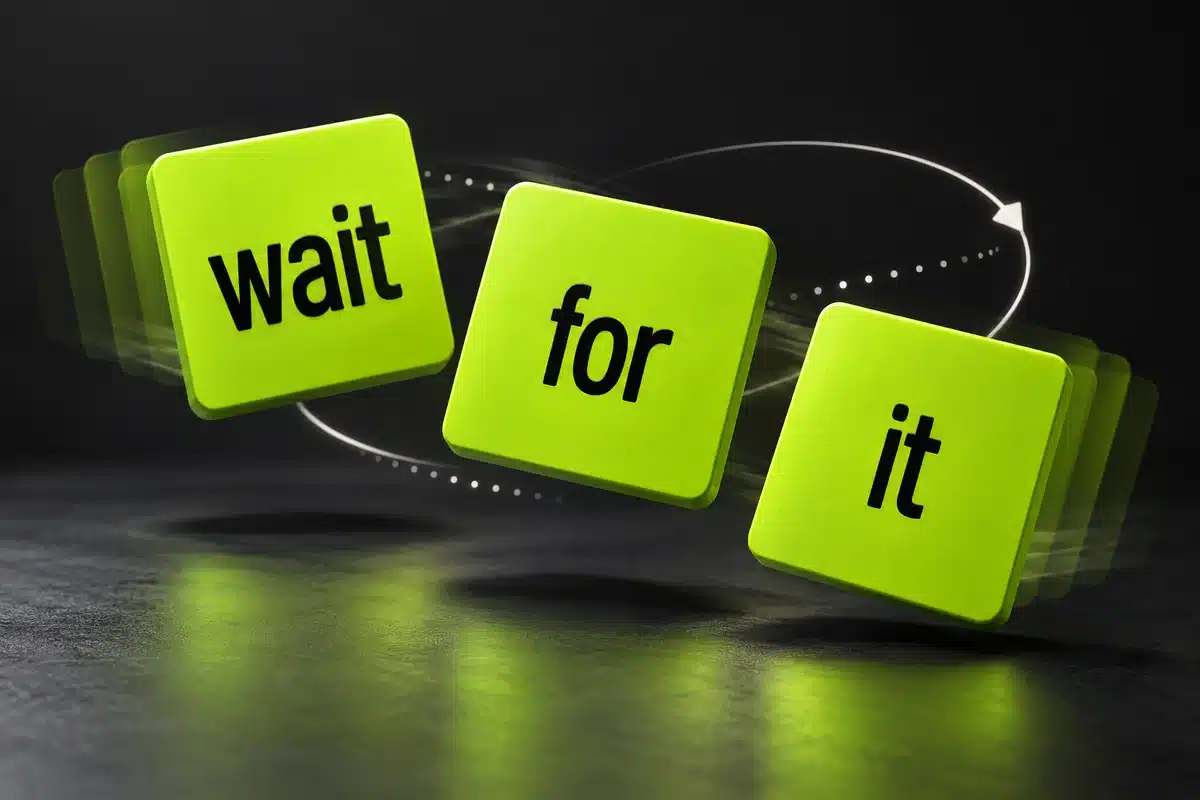
A GIF repeats, so your last frame needs to connect naturally to the first. Write the complete message before designing anything. For example, “wait” followed by “for” and then “it” creates anticipation each time the sequence restarts. A reaction such as “me” followed by “again” works with just two cards.
Decide whether the animation reveals a sentence or changes a mood. A sentence needs enough time for viewers to read the words in order. A mood loop might alternate between “busy” and “still busy,” holding the second card longer to give the joke space.
Use your own short phrases. A GIF does not need song lyrics or a performance clip to communicate the visual style. Original wording also makes the result more personal than reusing a familiar caption without changing its context.
Choose the format before building frames
A square canvas is a convenient starting point for reaction graphics because it gives short text room on every side. Choose one size and use it for the entire sequence. The generator's square preset provides a consistent source; resize the assembled animation later if necessary.
GIF is suitable for a silent loop. If your idea depends on spoken words, music, or precise sound cues, create a video instead. Our Brat Generator versus CapCut guide explains the distinction between generating an image and editing a video.
Do not assume that every destination treats an uploaded GIF the same way. Some interfaces animate a file immediately, while others display a preview or convert the upload. Test the actual sharing route you plan to use before making a whole collection.
Create a consistent set of PNG frames
Set the style on the first frame
Enter the first word, choose your background and text colors, and center the lettering. Black text on the site's #8ACE00 green preset is an easy starting combination. Keep blur subtle so the smallest displayed version remains readable.
Check the first frame at reduced size. You should recognize the word without leaning closer. If you cannot, shorten it or enlarge the text before generating the remaining frames. A more elaborate transition will not rescue an unreadable source image.
Keep positions and text weight stable
Generate the remaining words without changing the canvas dimensions or alignment. Auto-fit may make short words much larger than long ones. That can be an intentional effect, but for a steady sequence, adjust font sizes until the cards feel related.
Watch the baseline as well as the left and right margins. A word that unexpectedly jumps upward can make a simple animation look accidental. Preview the frames together before assembly, especially when one contains tall letters and another includes letters extending below the baseline.
Give the files an unambiguous order
Save the images as PNG files and name them “01-wait.png,” “02-for.png,” and “03-it.png.” Numbering makes the intended sequence obvious in a folder and reduces mistakes when an editor sorts uploads alphabetically.
Keep all originals in one place. If the final animation needs revision, change the relevant source image and rebuild it. Repeatedly editing a compressed GIF can make a simple correction harder than replacing one clean frame.
Assemble the animation in a GIF editor
The Ezgif GIF maker accepts multiple images and provides controls for frame order and delay. Upload your numbered PNG files, check their sequence, and arrange them if necessary. This step sends those files to the external editor, so use artwork you are comfortable uploading.
Choose loop settings, enter the delay values, and generate the preview. In Ezgif, delay is measured in hundredths of a second: 100 means one second, and 150 means one and a half seconds. Other editors may use milliseconds, so check the unit before copying a number.
For the three-card example, try 100, 100, and 150. This creates a 3.5-second sequence with a slightly longer final pause. Those values are an editorial starting point, not a platform rule. Read the loop once without anticipating the words, then adjust anything that feels rushed.
Download the finished GIF after checking the preview. Keep the source PNG files because they remain useful if you later want a different size, timing pattern, or video version.
Make motion support the wording
Simple cuts between cards often suit this aesthetic. They preserve the flat background and let the text carry the joke. Fades can feel softer, but they also introduce moments when both words overlap or neither is fully readable.
Avoid adding movement merely because a control is available. A rotating word, sliding background, and changing color all demand attention at once. Choose one effect that serves the message, then remove anything that makes the viewer work harder to understand it.
Keep the background steady instead of alternating bright and dark screens rapidly. For a reaction GIF, measured changes and longer holds usually communicate more clearly. If the animation will accompany important information, include the same message as ordinary text so it remains available without motion.
Reduce file size without losing the joke
Start by removing unnecessary frames. Three deliberate text cards can communicate more effectively than dozens of nearly identical transition frames. Extra fades and moving textures increase complexity while adding little to a short caption.
Next, reduce the output dimensions to suit the place where people will actually see it. A small chat reaction rarely needs the same source dimensions as a large design preview. Try a smaller version, inspect the letters, and compare the actual file sizes rather than assuming the reduction is harmless.
Ezgif's GIF optimization guidance describes options such as resizing, reducing colors, and dropping frames. Apply one change at a time so you can see which setting affects quality. Preserve enough colors to keep softened letter edges from turning into rough blocks.
Do not chase a universal file-size target. Upload limits vary by platform and use case. Check the limit in your destination, then leave reasonable headroom. For Discord-specific artwork, the site's Discord icon and sticker guide provides related design context; verify current upload rules in Discord itself.
Troubleshoot the exported GIF
If only one frame appears, open the saved file in a browser and compare it with the editor preview. A static thumbnail does not necessarily mean the file lost its animation. Make sure you downloaded the GIF itself rather than saving a preview image or taking a screenshot.
If words appear in the wrong order, inspect the filename sequence and frame arrangement. If one card looks cropped, return to the source files and check that all dimensions match. Stretching a mismatched frame can distort its typography.
If the loop feels awkward, lengthen the final pause or rewrite the ending so it leads back to the opening. Timing can improve delivery, but the wording still needs to make sense when repeated.
Keep a small timing note beside the source files. Record the order, each delay, the output dimensions, and the destination you tested. This turns a successful experiment into a repeatable recipe. When making a second reaction, change the words first and keep the established settings as a starting point. Adjust the timing only after reading the new phrase, since longer wording may need a longer hold.
Frequently asked questions
Can this Brat generator export animated GIFs directly
The current interface exports static PNG or JPEG images. Use those images as frames in a separate GIF editor. Check the tool interface for future changes rather than assuming an animation option exists.
How many frames do I need
Two or three frames are enough for many short reactions. Add more only when the wording or effect requires them. Every frame should have a clear purpose and remain visible long enough to understand.
Can an animated GIF contain music
GIF does not carry an audio track. Use a video format and an appropriate video editor if the message depends on music or speech. Keep a silent GIF version only when the visual sequence makes sense independently.
Why does the text look worse after export
Reduction, limited colors, and compression settings can change letter edges. Compare the GIF with your PNG originals, reduce excessive blur, and adjust one export setting at a time until the text remains clear.
Can I create the frames on my phone
Yes, you can create the static artwork in a mobile browser. The animation step depends on your chosen editor's mobile interface. Number the downloads carefully and test the finished file through your intended sharing app.
Can I make an animated GIF from the generator?
Export the still frames and combine them in a GIF or video tool; the generator itself outputs PNG and JPEG.
How big should a GIF be?
Keep dimensions small, for example 480 pixels wide, and the duration short to keep file size low.
Are GIFs good for accessibility?
Avoid fast flashing, and offer a static alternative.
Brat Generator is an independent tool and is not affiliated with, endorsed by, or sponsored by Charli XCX, her record label, or any related brand. Any album or trademark names are mentioned only to describe a visual style.