Brat-Style WhatsApp Status & DP: The Exact Sizes That Won’t Get Cropped
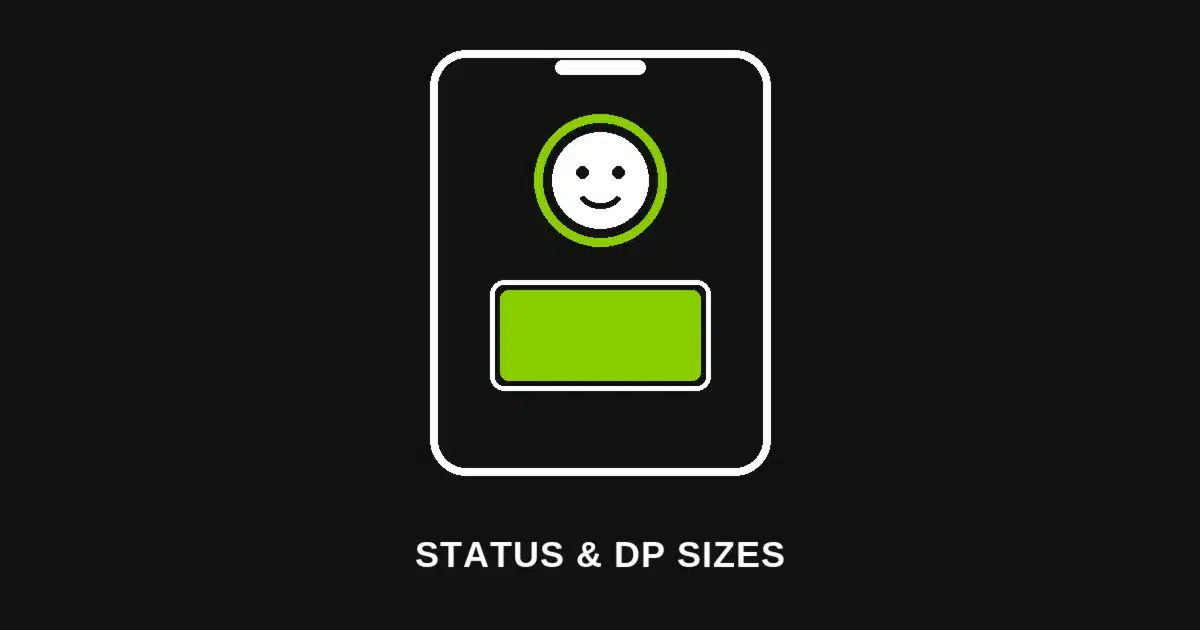
Quick answer: WhatsApp displays your profile photo at 640x640px in a circle, Status images at 1080x1920px full-screen, and stickers at 512x512px in WebP format only. Design at these exact sizes in the Brat Text Generator and keep key text inside the safe zone, since WhatsApp compresses and crops anything built off-spec.
Most brat-style WhatsApp graphics come out blurry or cropped for one reason: they were designed at whatever size felt convenient, not the size WhatsApp actually renders. Matching the platform’s real dimensions fixes both problems in one step.
This is the same sizing-first approach used for Instagram Highlight Covers and a Twitter/X header — get the exact pixel dimensions right first, then the flat brat-style design takes minutes.
The Three Sizes You Need
| Element | Display Size | Shape | Notes |
|---|---|---|---|
| Profile photo (DP) | 640 x 640px | Circle | Upload at 1080 x 1080px for sharper results after compression |
| Status image | 1080 x 1920px | Full-screen, 9:16 | Keep key content in the center ~1080 x 1600px area |
| Status video | 1080 x 1920px | Full-screen, 9:16 | Max 90 seconds, same safe zone as status images |
| Sticker | 512 x 512px | Square | WebP format only, transparent background, under 100KB |
WhatsApp compresses every image you upload, sometimes significantly. Designing at these sizes — or slightly larger for the DP — gives the compression something clean to work with instead of an already-soft file.
Profile Photo: 640x640px, Displayed as a Circle
Your WhatsApp profile photo displays at 640x640px but shows as a circle everywhere in the app — chat lists, call screens, group members. A square design with important content near the edges gets clipped the moment it renders.
Keep the important content within the center 80% of the canvas. For a brat-style DP — bold text on a flat color — that means centering the text with generous padding on all four sides, not running it edge to edge.
For a sharper result after WhatsApp’s compression, design and upload at 1080x1080px rather than the exact 640x640px display size. The extra resolution survives compression better than a file already at the minimum.
Building the Profile Photo Step by Step
1. Open the Brat Text Generator and set a custom canvas at 1080 x 1080px.
2. Pick one flat color — Brat Green for the most recognizable version, or Brat Pink or Black for a variation that still reads clearly at a small circular size.
3. Keep text short and centered. A single word, initials, or a short phrase works better than a sentence — remember this displays as a small circle in most places it appears.
4. Leave a wide margin. Since the circular crop clips content near the corners and edges, keep everything inside roughly the center 80% of the square.
5. Export and upload directly to WhatsApp’s profile photo setting — no cropping tool needed if the design already respects the safe zone.
Status Images: Full-Screen at 1080x1920px
A WhatsApp Status image displays full-screen at 1080x1920px, a 9:16 vertical ratio — the same aspect ratio as an Instagram Story or Reel. Building at this exact size means what you design is exactly what your contacts see.
The safe zone matters more here than on the DP: keep key text and graphics within roughly the center 1080x1600px area. WhatsApp’s own interface — the reply bar, the sender name, and navigation controls — overlaps the top and bottom of every Status, so text placed there gets covered.
A flat-color background with centered bold text, built the same way as a brat-style Instagram Story, transfers directly to WhatsApp Status with no resizing needed.
Status Videos Follow the Same Rules
WhatsApp Status videos use the identical 1080x1920px frame and 9:16 ratio as status images, with a maximum length of 90 seconds per Status. The same center-safe-zone guidance applies — anything critical near the top or bottom risks being covered by the app’s interface.
If you’re pairing a brat-style still frame with a short video Status, designing both at 1080x1920px keeps them visually consistent when someone scrolls through your Status updates back to back.
Stickers: 512x512px, WebP Only
WhatsApp stickers are the strictest format on the platform: exactly 512x512px, WebP format exclusively — PNG and JPG files are not accepted — with a transparent background and a file size under 100KB.
A brat-style sticker pack works best as short, punchy words or phrases rather than full sentences, since the small square size and WebP compression favor simple, high-contrast designs over detailed graphics.
Export your design as a PNG with a transparent background first, then convert to WebP using a free online converter or an image tool that supports the format — WhatsApp’s sticker upload will reject anything else outright.
Why Compression Makes the Exact Size Matter More
WhatsApp compresses all uploaded images significantly, which is exactly why designing at the minimum display size backfires. A file built at exactly 640x640px, once compressed, can look noticeably softer than one built larger and scaled down by WhatsApp’s own pipeline.
For the DP specifically, uploading at 1080x1080px — well above the 640x640px display size — gives WhatsApp’s compression a higher-resolution source to work from, which is why that’s the recommended upload size rather than the bare display minimum.
Status images and videos don’t have the same easy workaround, since 1080x1920px is already the full display resolution. Sticking exactly to that size, rather than guessing, avoids WhatsApp scaling or cropping an off-spec file.
Common Mistakes to Avoid
Designing a square DP with text at the edges. The circular crop clips anything outside the center 80%, so edge-to-edge text loses its corners the moment it displays.
Ignoring the Status safe zone. Text placed at the very top or bottom of a 1080x1920px Status gets covered by WhatsApp’s own reply bar and sender name overlay.
Uploading a PNG or JPG sticker. WhatsApp’s sticker format accepts WebP exclusively — any other format is rejected on upload, not silently converted.
Uploading a DP at exactly 640x640px. It technically works, but 1080x1080px survives WhatsApp’s compression with noticeably more detail intact.
Making a sticker over 100KB. Stickers have a hard file-size ceiling in addition to the fixed 512x512px dimensions — a detailed design can blow past that limit fast.
DP vs. Status vs. Sticker: Choosing the Right Format
A profile photo is the one graphic every contact sees constantly, in a small circle — simple, bold, centered text works best, since detail is wasted at that size and shape.
A Status image is your biggest canvas on WhatsApp and disappears after 24 hours, making it the right place for a bigger design statement — a full brat-style background with a bolder phrase.
A sticker is built for repeated, casual use in chat threads — short words, high contrast, and a transparent background matter more than a fully designed scene.
Matching Your WhatsApp Graphics to Other Platforms
If you’re already using brat-style graphics elsewhere, the same flat-color, bold-text system carries over cleanly — just rebuild at each platform’s specific dimensions rather than stretching one file across all of them.
A Twitter/X header or Facebook cover photo uses a completely different aspect ratio than a WhatsApp Status, so treat each as its own export rather than reusing one canvas across platforms.
Keeping the same color and font choice across every platform, while adjusting only the canvas size, is what makes a personal brand feel consistent without extra design decisions each time.
A Quick Reference Before You Design
If you only remember one thing: 640x640px for the DP (upload at 1080x1080px), 1080x1920px for Status, and 512x512px WebP-only for stickers. Everything else follows from getting those three numbers right.
Keep text centered and away from edges on all three formats — WhatsApp’s circular crop, Status interface overlay, and small sticker size all punish content placed too close to the border.
Frequently Asked Questions
What size should my WhatsApp profile photo be? WhatsApp displays profile photos at 640x640px in a circle, but uploading at 1080x1080px gives sharper results after WhatsApp’s compression.
What size is a WhatsApp Status image? 1080x1920px, a 9:16 vertical ratio — the same size as an Instagram Story. Keep key content within the center 1080x1600px area to avoid the app’s interface overlays.
Can I use a PNG for a WhatsApp sticker? No. WhatsApp stickers must be WebP format exclusively, exactly 512x512px, with a transparent background and under 100KB in size.
Why does my WhatsApp DP look blurry after uploading? WhatsApp compresses all uploaded images significantly. Uploading at 1080x1080px instead of the 640x640px display minimum gives the compression more detail to work with.
How long can a WhatsApp Status video be? Up to 90 seconds, at the same 1080x1920px frame size as Status images.
Why is my profile photo cropped in a circle? WhatsApp always displays profile photos as circles, regardless of the shape you upload. Keeping content within the center 80% of a square design avoids clipping.
Do I need special software to make these graphics? No. The Brat Text Generator lets you set any custom canvas size directly in the browser and export free, with no watermark.
Can I reuse my Instagram Story design for WhatsApp Status? Yes — both use the same 1080x1920px, 9:16 vertical format, so a design built for one exports directly for the other.